GED Online Proctored Exam: How to Test from Home
Taking the GED online proctored exam means you can skip the testing center and finish your credential from your kitchen table, but only if you follow the rules exactly. Miss one requirement, like a shaky internet connection or a cluttered desk, and you risk getting flagged mid-test or locked out entirely. That’s the last thing you need after weeks of studying.
This guide walks you through exactly what the online proctoring process demands: the equipment checks, the room setup, the ID verification, and what the proctor watches for while you work. You’ll know precisely what to expect before you ever log in, so test day feels routine instead of stressful.
We’ll cover system and room requirements, how scheduling and check-in actually work, common reasons candidates get interrupted or fail verification, and what to do if something goes wrong during the exam. Once you understand the logistics, the real work is knowing the content cold. That’s where focused practice with detailed answer explanations, like GED practice tests covering all four subjects, makes the difference between passing and retesting.
What is the GED online proctored exam?
The GED online proctored exam is the same test you’d take at a Pearson VUE testing center, delivered through your own computer and monitored in real time by a live human proctor over webcam. GED Testing Service partners with Pearson VUE’s OnVUE platform to run this remote version, so the questions, scoring scale, and pass threshold (145 per subject) never change. What changes is the environment: you sit at home, share your screen and room view with a proctor, and follow strict rules about what’s visible around you.
The test content stays identical to the testing center version; only the delivery method and the rules around your physical space change.
Why states offer it
States began offering online GED testing to remove barriers like transportation, childcare, and testing center availability, especially for adults juggling jobs and family obligations, and the rules for how to pass the GED test online are worth reviewing before you commit. It also gives candidates flexibility in scheduling, since online appointments are available 24 hours a day, well beyond a physical center’s hours.
How proctoring actually works
A live proctor watches your webcam feed for the entire exam, checks your ID against your face, and can warn you or end your session if they spot a phone, a second monitor, or another person in the room. This isn’t just software reviewing a recording later (though sessions are recorded, and you consent to that); it’s a real person monitoring you as you type. That distinction matters because it means real-time interruptions, like a proctor asking you to pan your webcam around the room again, are normal and not cause for panic.
Step 1. Confirm your eligibility and state availability
Before you schedule anything, check that your state allows online GED testing, since not every state offers it. As of October 2026, GED.com lists no online testing in Connecticut, Florida, Hawaii, New York, West Virginia and Wyoming, and limited online testing in Indiana, Kansas, Massachusetts, Montana, New Jersey, Pennsylvania, South Carolina and Utah. Iowa and Maine don’t offer the GED at all. Visit your state’s GED page through GED.com to confirm the current rules. If your state’s online testing is limited, your GED.com account shows the details.
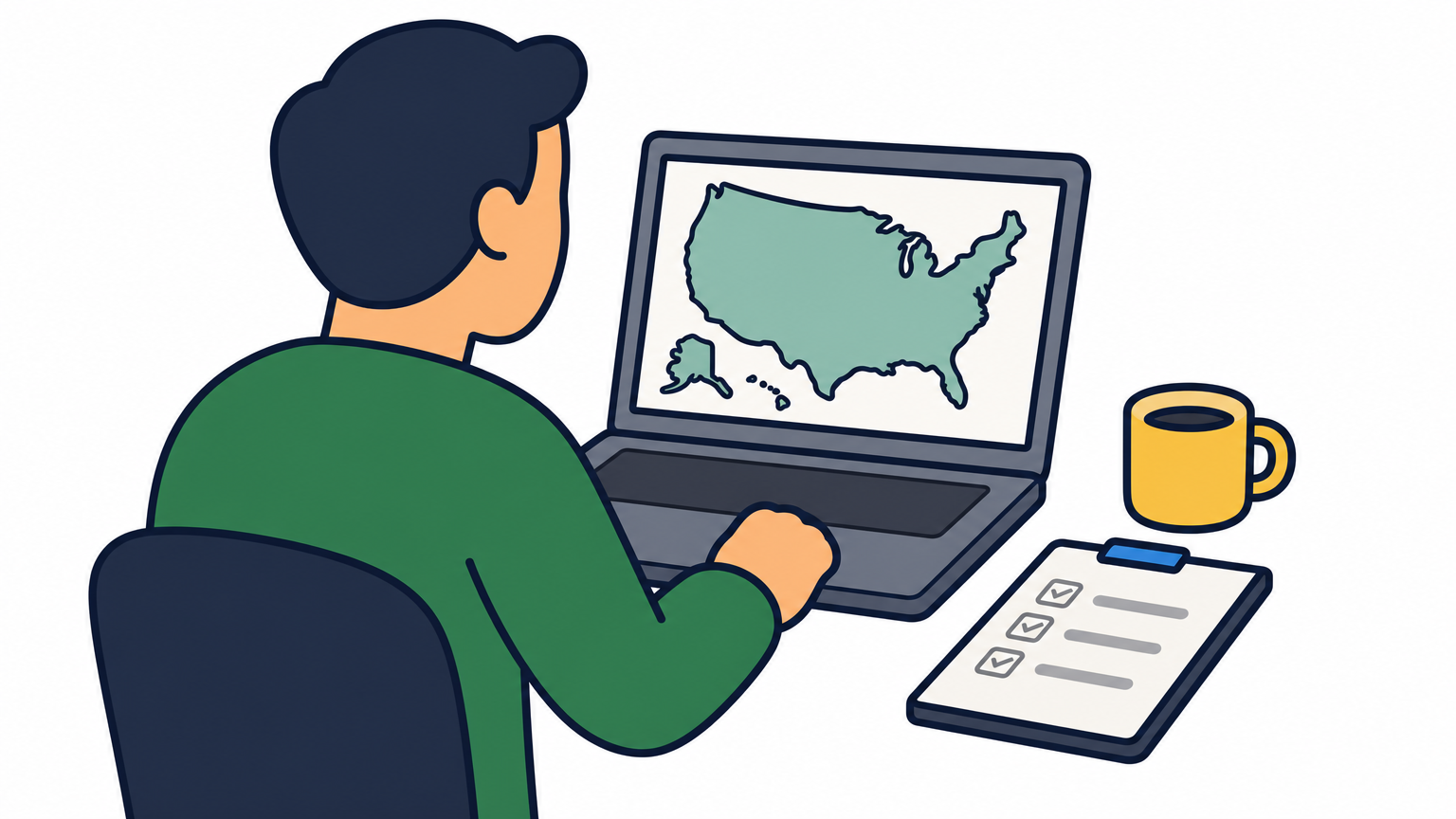
Confirming state eligibility first saves you from scheduling a test you can’t actually take from home.
For the full process from account to diploma, including cost and free options, see how to get your GED online.
Check your state’s specific rules
Requirements vary more than most candidates expect. Look for these details on your state’s page:
- Whether online testing is offered, limited or not available in your state
- The minimum age for online testing (16+, 17+ or 18+ depending on the state). Test-takers under 18 need parent or guardian consent, and a parent or guardian must be present at online check-in
- Your ID: for online testing it must be a current government-issued photo ID (passport, driver’s license, learner’s permit, or national or state ID card) showing your name, date of birth, signature and photo. Military IDs aren’t accepted
- Any residency requirements tied to your testing state
Once you’ve verified eligibility, you’re clear to create or log into your GED.com account and move toward scheduling. Skipping this step is the fastest way to waste a testing fee on a session you’re not eligible to take.
Step 2. Score green on the GED Ready practice test
Before GED Testing Service lets you sit for the online proctored exam, you need a “green” (likely to pass) score on the corresponding GED Ready practice test within the last 60 days, for every subject you want to take online. The rule applies to all online GED testing. This isn’t optional paperwork; it’s a gatekeeping step built to reduce failed attempts and protect the integrity of remote testing. A yellow (Too Close to Call, 134-144) or red (Not Likely to Pass, 100-133) score means you can’t schedule that subject online yet, though you can still book it at a test center. GED Testing Service’s reason: online testers get fewer immediate retakes. After two failed online attempts, you wait 60 days before testing that subject online again.
A green GED Ready score isn’t just a formality, it’s your ticket to test from home instead of driving to a center.
Build your score with targeted practice
Don’t guess which topics need work — a free GED study guide online can map out where your time should go. Focus your remaining study time by:
- Reviewing detailed rationales for every wrong answer, not just the correct one
- Running full-length, timed sections to match real exam pacing
- Retaking weak subjects until you consistently land green
PrepNovat’s GED practice gives you that structured work: start with 20 free GED questions, then move to the GED Exam bank (2,000+ questions with rationales) when you need more volume.
Step 3. Run a system check for your computer and webcam
Run OnVUE’s system test on the exact computer and network you’ll use on test day, not a different device that happens to work fine. This checks your webcam, microphone, internet speed and connection, and runs a one-question practice simulation, before you’re locked into a scheduled slot. Skipping this step is how candidates discover a broken webcam five minutes before check-in.
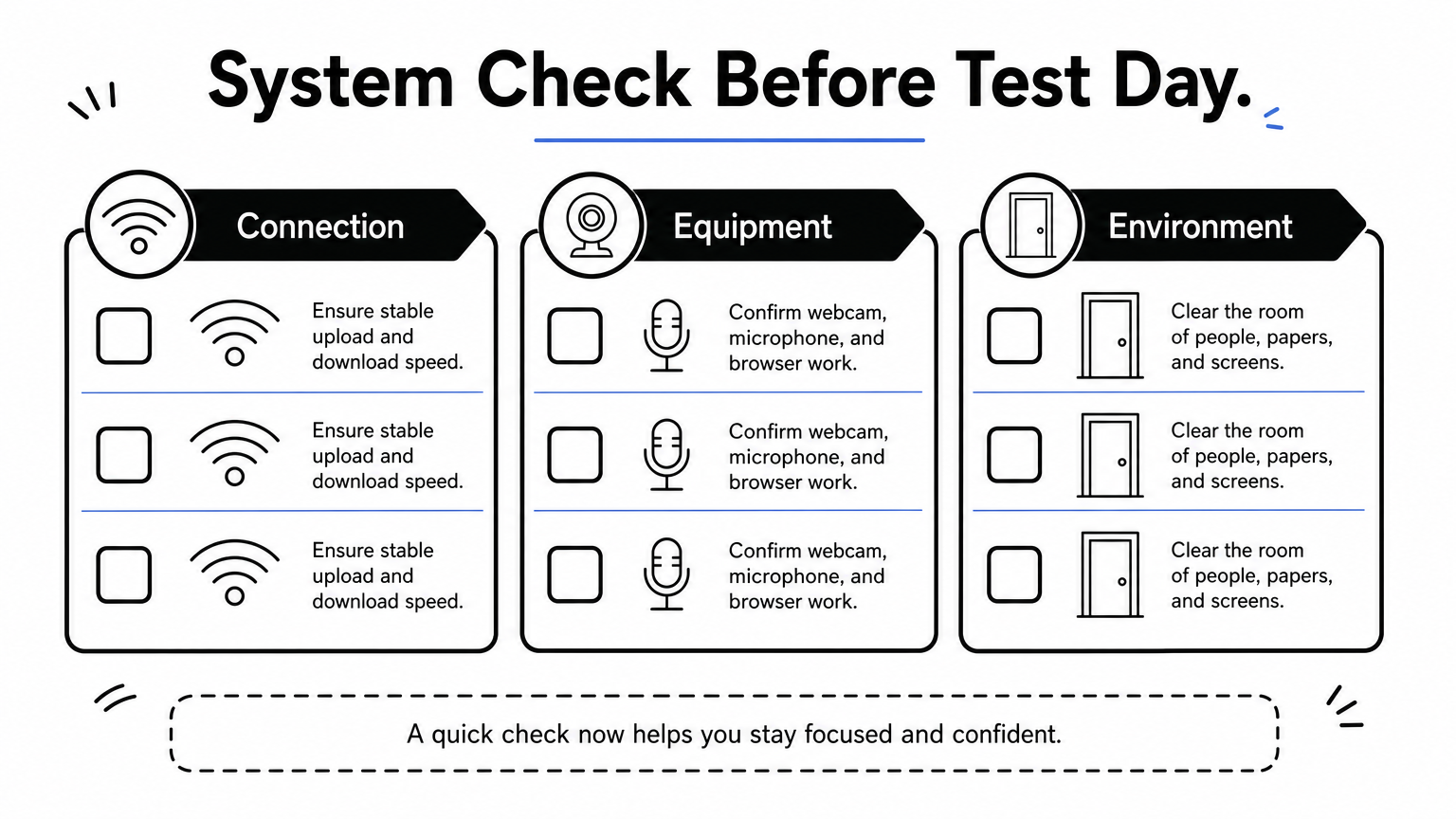
Test your actual exam setup days in advance, not the morning of your appointment.
What your setup needs
- Internet speed: Pearson VUE requires at least 6 Mbps download and 2 Mbps upload. A wired connection is recommended, and VPNs and proxies aren’t allowed
- A working webcam, built-in or external, facing you at eye level. A mobile phone can’t be used as the webcam
- A working microphone and built-in or wired speakers. Headphones aren’t allowed
- A supported computer: Windows 10 or 11 (64-bit, not S Mode) or macOS 14 or later. Chromebooks (Chrome OS) and Linux aren’t supported, and tablets work only with a physical keyboard
- One monitor only, no touchscreen, and a closed-door room free of other people and papers
Fix problems before scheduling
If the check flags issues, address them immediately: switch to ethernet instead of Wi-Fi, close background apps eating bandwidth, or borrow a laptop with a built-in camera. A failed system check the night before your exam leaves no time to troubleshoot, so run it early enough to adjust your equipment. If the check still fails, GED.com says to fix the problem or schedule that subject at a test center. If you wait until your appointment and the system test fails, you won’t be able to test and will lose your payment.
Step 4. Schedule, verify your ID, and check in for test day
Once your system check passes, log into GED.com and pick an available test slot, choosing a time when your home is guaranteed quiet for the full exam window. Have a current (not expired) government-issued photo ID that shows your name, date of birth, signature and photo, and make sure the name matches your GED.com account. For online testing GED accepts a passport, driver’s license, learner’s permit, or national or state ID card; military IDs aren’t accepted. Test-takers under 18 may use a valid student ID but need a parent or guardian with a valid ID at check-in.
Your ID has to match your GED.com account name exactly, or the proctor won’t let you start.
What check-in actually involves
Arrive online 30 minutes before your slot and expect these steps:
- Photographing your ID (front and back for a driver’s license, or the photo page of a passport)
- Taking a live selfie for facial comparison
- Panning your webcam around the room, desk, and under it
- Confirming no phones, papers, or extra screens are visible
- Being on time: signing in 15 or more minutes after your appointment counts as a no-show, and you may lose your fee
Clear your space beforehand
Remove sticky notes, whiteboards, and family photos from view, since anything with writing can trigger a manual review. A clean desk and a closed door speed up check-in and get you into the actual exam faster.
Step 5. Take the test and handle proctor rules or disconnects
Once the proctor clears you, the exam starts like any computer-based GED test, except you’re now under continuous webcam watch for the full session. Stay in frame, keep your hands visible, and avoid talking to yourself out loud, since sudden movements or mumbling can prompt a warning. Breaks are limited: Science and Social Studies have no scheduled break, and RLA includes a 10-minute break. Use the restroom before you log in, and don’t leave the webcam view unless the exam confirms you’re on an approved break.
Staying visible and quiet in frame matters as much as knowing the content once the exam begins.
If your connection drops
A disconnect during testing isn’t always the end of your exam, but it can be. GED Testing Service counts an exam you can’t complete because of technical difficulties as a no-show, and if the problem is on GED’s test delivery system you must notify GED Testing Service immediately. What to do:
- If your computer freezes or disconnects, close and relaunch OnVUE from your downloads folder (Pearson VUE’s guidance)
- Use the in-exam chat to reach the proctor. Proctors can’t pause or extend your exam or fix your device, so if the problem continues, contact GED Testing Service right away
- Fix connection risks before test day: use a wired connection and ask others at home not to stream during your exam
If the proctor flags something
A proctor might message you or speak to you about a noise, a reflection, or a second person nearby. Answer calmly, adjust what they ask, and resume. Panicking or arguing wastes time you need for the actual questions.
Getting ready for test day
Passing the GED online proctored exam comes down to two things: a setup that meets every technical requirement, and content knowledge solid enough to survive a webcam watching your every move. You’ve now got the checklist, from confirming state eligibility to handling a mid-test disconnect, so the logistics shouldn’t surprise you anymore. The equipment side is manageable with a little preparation; the content side takes real study time.
Don’t walk into GED Ready hoping for green. Build that score with practice questions that explain why wrong answers are wrong, not just which choice is correct, so weak spots actually close instead of resurfacing on test day. That’s exactly what structured GED test prep should do for you: turn uncertainty into a plan.
If you’re ready to stop guessing and start scoring green, work through PrepNovat’s GED Exam bank, starting with 20 free practice questions, before you schedule your next attempt.

Natalie
PrepNovat Team